Connect Gitea to Windshift
Link a self-hosted Gitea instance to Windshift, start branches and pull requests from a work item, and keep review status on the item.
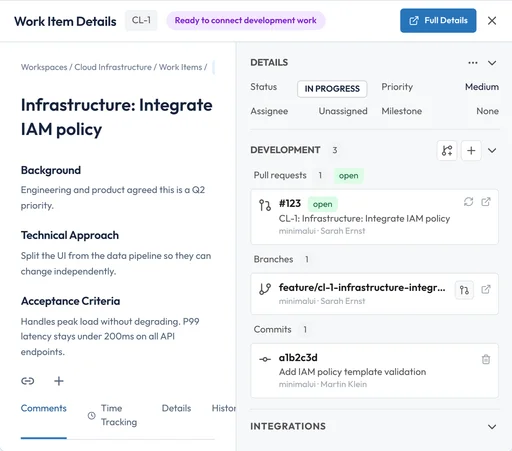
Create a branch and a pull request from the work item, link a commit, and watch the review status follow the change.
What the integration gives you
The connection lives in your Windshift instance and calls the provider API directly.
- Link repositories: Discover the repositories the connection can reach, then link the ones a workspace tracks.
- Connect changes to work items: Link pull requests or merge requests to the work item, and read item keys from branch names and commit messages.
- Start from a work item: Create a branch and open a change request without leaving the item.
- Follow review threads: Read review comments so a teammate or an agent can continue from the discussion.
- Track releases: Attach a tag to a milestone and see which changes shipped with it.
- Stay current: Webhooks update linked repositories after each push or review event, with polling as a fallback.
- Issue sync is available on the GitHub integration only. This integration links branches, commits, and change requests, not its issue tracker.
Ways to connect
Windshift connects to Gitea through its native API. The same provider also serves Forgejo, because Forgejo keeps the Gitea API compatible. Authentication uses an OAuth application or an access token.
Windshift creates branches and change requests, so the connection needs write access, not only read access.
- OAuth App: Register an OAuth application in Gitea. Each user authorizes their own account, and Windshift refreshes the token automatically.
- Access token: Create an access token in Gitea and use it for all Windshift operations. Use a dedicated account for server-to-server work.
Set up the integration
A Windshift administrator configures the provider once. Workspace administrators then link repositories.
Keep the credentials with the team that owns the Git host. Rotate the token or secret on the same schedule as your other service accounts.
- Create the credentials in Gitea: Register an OAuth application or create an access token. For OAuth, set the redirect URI to the callback URL that Windshift shows.
- Add the provider in Windshift: Open Settings, SCM Providers, add a provider, choose Gitea / Forgejo, and enter the instance base URL, for example https://gitea.example.com.
- Connect a workspace and link repositories: Connect the provider to the workspace and link the repositories the workspace tracks.
- Confirm the webhook: Windshift registers a repository webhook when the connection allows it. Verify the delivery in the repository settings on Gitea.
Permissions and scopes
Exact permission names follow the provider. Check them against your instance policy before you grant access.
- Link and browse repositories: The connecting account can access the repository.
- Create branches, pull requests, and comments: Repository write access.
- Register the repository webhook: Repository administration access.
- OAuth scopes: read:user read:repository write:repository
Self-hosted notes
Gitea is self-hosted, so the base URL is required. Both servers must reach each other for OAuth callbacks, webhooks, and API calls. If the instance uses a self-signed certificate, the Windshift host must trust the certificate authority.
Frequently asked questions
Does Windshift support Forgejo through the Gitea provider?
Yes. Forgejo keeps the Gitea API compatible, so the same provider works. Enter the Forgejo instance URL as the base URL.
Can I connect more than one Gitea instance?
Yes. Add a provider for each instance, with its own base URL, then link the repositories each workspace tracks.
Can I restrict a provider to specific workspaces?
Yes. A system administrator can restrict a provider to an allowlist of workspaces.