Test runs
A test run executes a plan and records a result for each test case.
Create a test run
- Open Test Runs.
- Select Create Test Run.
- Select a test plan.
- Enter a run name.
- Select an assignee. This step is optional.
- Select Create Run.
A run has two states: In Progress and Completed.
Execute a test run
During execution, Windshift shows one test case at a time. For each case, set one result:
| Result | Meaning |
|---|---|
| Passed | The case matched the expected result. |
| Failed | The case did not match the expected result. |
| Blocked | The case could not run. |
| Skipped | The case was not run. |
| Not run | The default state. |
For a steps case, record the actual result and notes for each step. For a BDD case, record the result for each Examples row and each step.
Select Next Case to move to the next test case. Select Previous Case to go back.
Link a failure to a work item
When a step fails, Windshift marks the step. Link the step to an existing work item, or create a new work item. The defect then appears in the same backlog as delivery work.
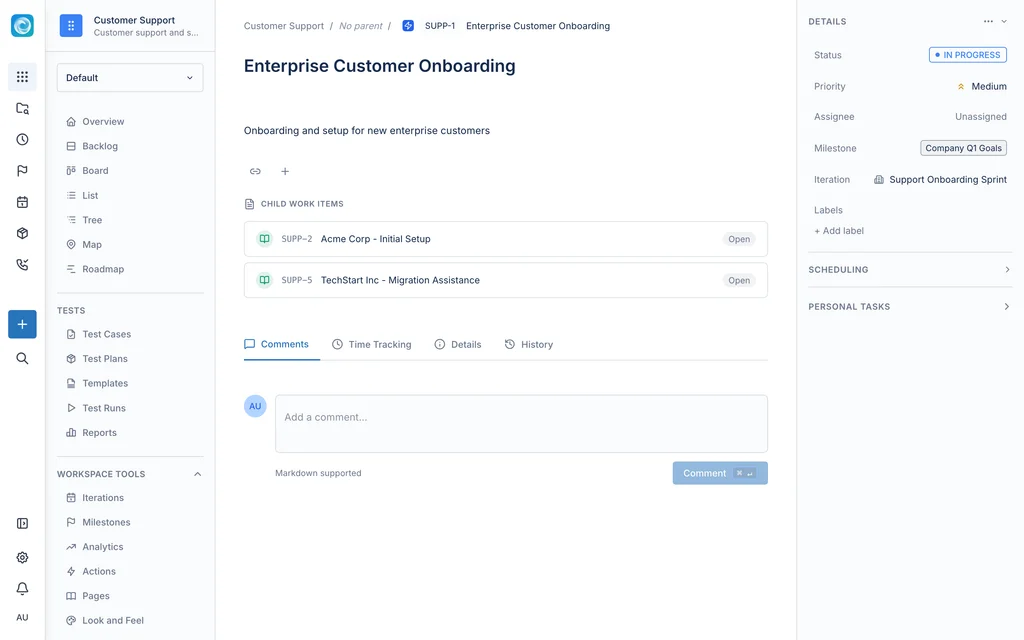
The run detail view also links a whole result to one or more work items.
Finish a run
Select Finish Execution to mark the run complete. Windshift records the end time.
Run detail
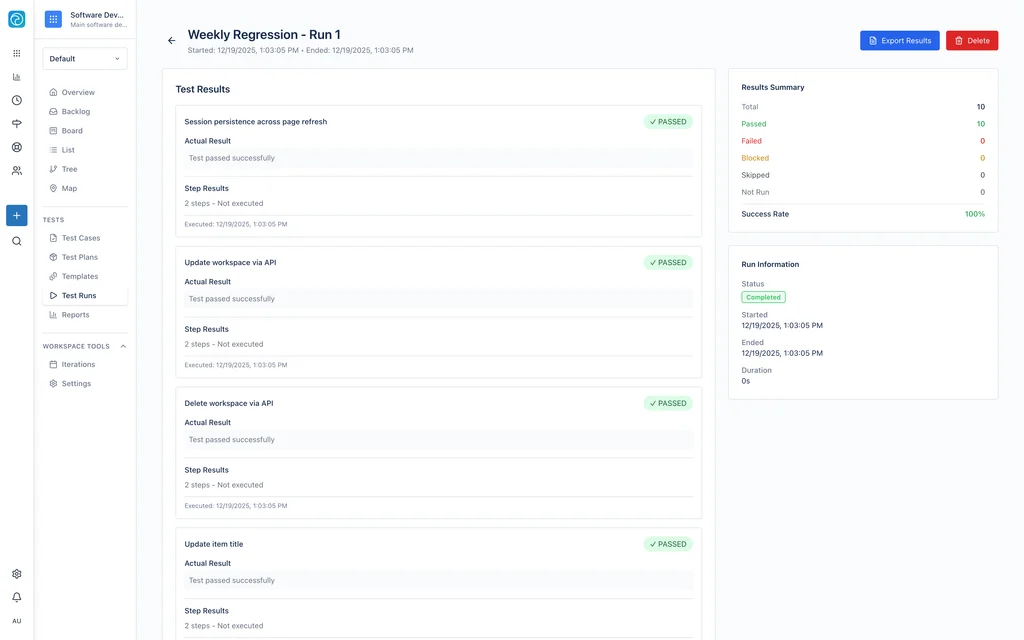
The run detail view shows:
- The results summary: total, passed, failed, blocked, and skipped.
- The success rate.
- The step results for each case.
- The linked work items.
Select Export Results to open the print view. Save the print view as PDF.