Milestones
A milestone is a dated goal that work items roll up into. Use milestones to track releases, deadlines, and launch readiness.
Open Milestones in the main navigation. Milestones also appear on the roadmap view.
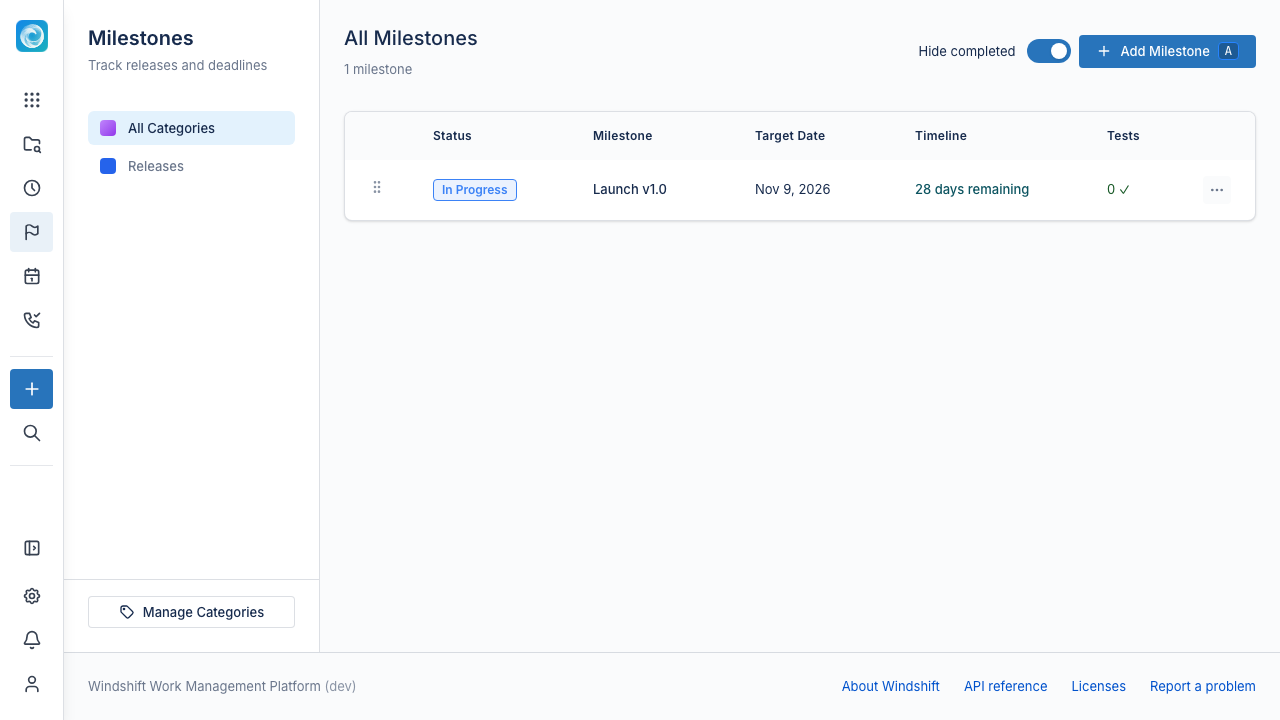
Milestone fields
| Field | Description |
|---|---|
| Name | The milestone name, such as "Q1 Release" or "Beta Launch". Required. |
| Target date | The goal date. A milestone can be open-ended with no target date. |
| Status | Planning, In Progress, Completed, or Cancelled. |
| Category | An optional grouping, such as a release train. |
| Description | Optional notes. |
| Scope | Global or local to one workspace. |
Global and local milestones
A global milestone is visible across all workspaces. A local milestone belongs to one workspace.
Creating a global milestone needs the milestone.create global permission. A local milestone needs edit access in the workspace. See Global Permissions.
Track progress
Open a milestone to see its progress:
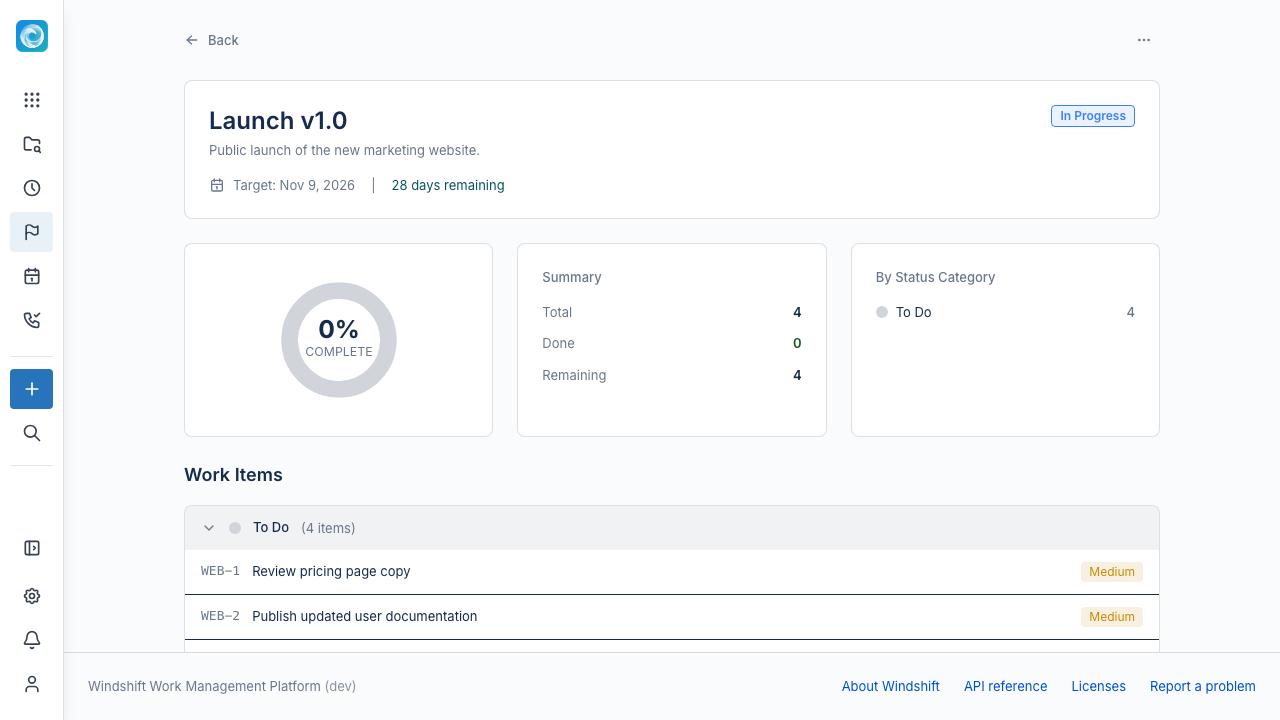
- Total items and completed items.
- Percent complete.
- A breakdown by status category.
- The work items grouped by category.
The milestone list also shows a Tests column with the test statistics for the items in the milestone.
A target date shows how much time remains. The list marks a milestone that is due today or overdue.
Group milestones with categories
Categories group related milestones. On the Milestones page, open Manage Categories to add and remove categories. Select a category to filter the list.
Creating a milestone category needs the milestone.create global permission.
Order milestones
Drag a milestone to change its order. Windshift stores the order within the milestone scope and category.
Complete a milestone
Set the status to Completed when the milestone is complete. Turn on Hide completed to keep completed milestones out of the list.
Link a release
Open a milestone and select Release to connect it to an SCM release:
- Create a new SCM release creates a tag and release in a linked repository.
- Attach an existing tag or release links a tag or release that already exists.
The form fills the tag name, release name, and notes. You can generate notes with AI, mark the release as a prerelease, and edit the body before you save.