Profile and Security
Your profile and security settings are personal. They apply to your account, not to a workspace. Open your avatar menu, then Profile or Security.
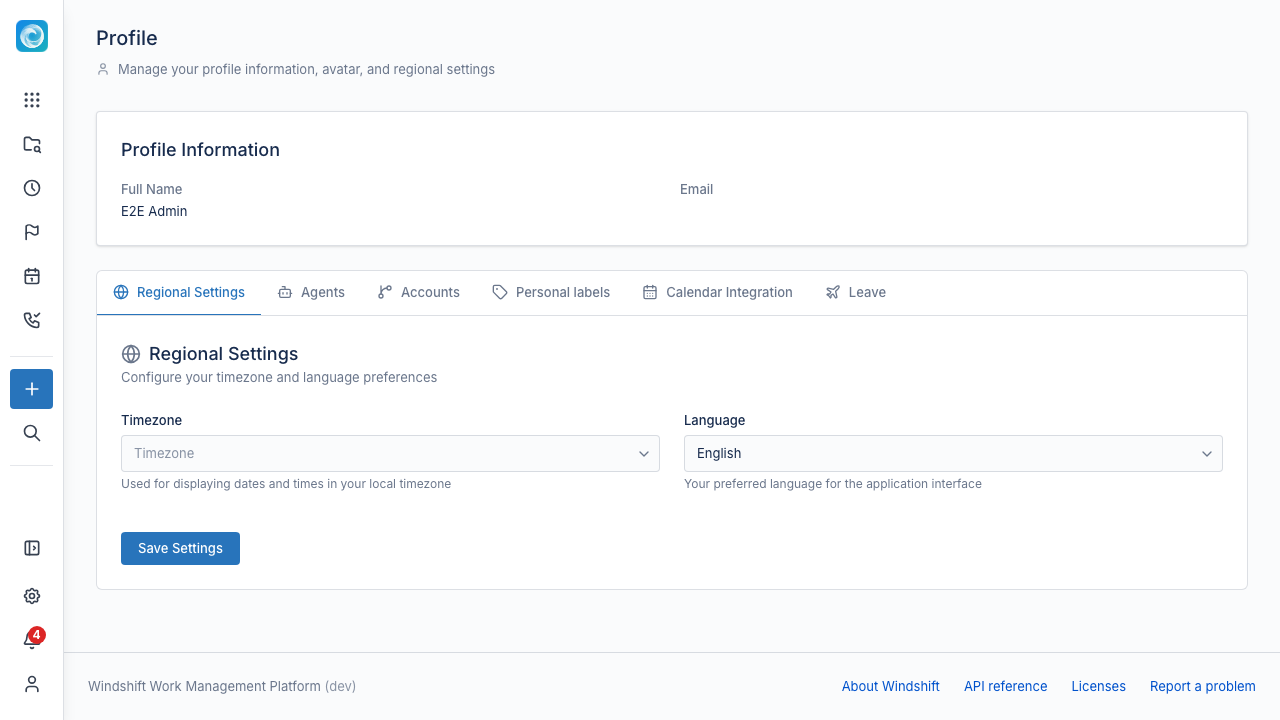
Profile
The profile page has these tabs:
| Tab | What it manages |
|---|---|
| Avatar | Your profile picture. |
| Regional settings | Your time zone and language. |
| Agents | Agent service accounts that inherit your permissions, and their API tokens. |
| Calendar integration | A subscription URL that adds your scheduled work items to an external calendar app. |
| Accounts | Connected source control accounts for branches and pull requests. |
| Personal labels | Labels only you can see and apply. |
| Leave | Time off and an optional on-call substitute. |
Regional settings
Your time zone controls how Windshift displays dates and times. Your language controls the interface language.
Personal labels
A personal label is private to you. Create labels such as "urgent" and apply them to work items. Other users do not see your personal labels.
Calendar integration
Select Generate Calendar Feed URL to create a subscription URL. Add the URL to Google Calendar or another calendar app. Do not share the URL. Select Regenerate URL to invalidate the old URL, or Revoke Feed to remove it.
Your administrator can disable calendar feeds in Admin > Security. When your administrator disables feeds, existing feeds stop working.
Agents
An agent is a non-human user that inherits your permissions and authenticates only with API tokens. It cannot sign in interactively. An administrator must enable user-managed agents before you can create one.
For each agent you can create and revoke API tokens. The agent keeps its username when you rename it.
Leave
Schedule a leave period with a start date, an end date, an optional reason, and an optional substitute. The substitute covers on-call shifts during the leave. See Teams.
Security
The security page manages your credentials and API tokens.
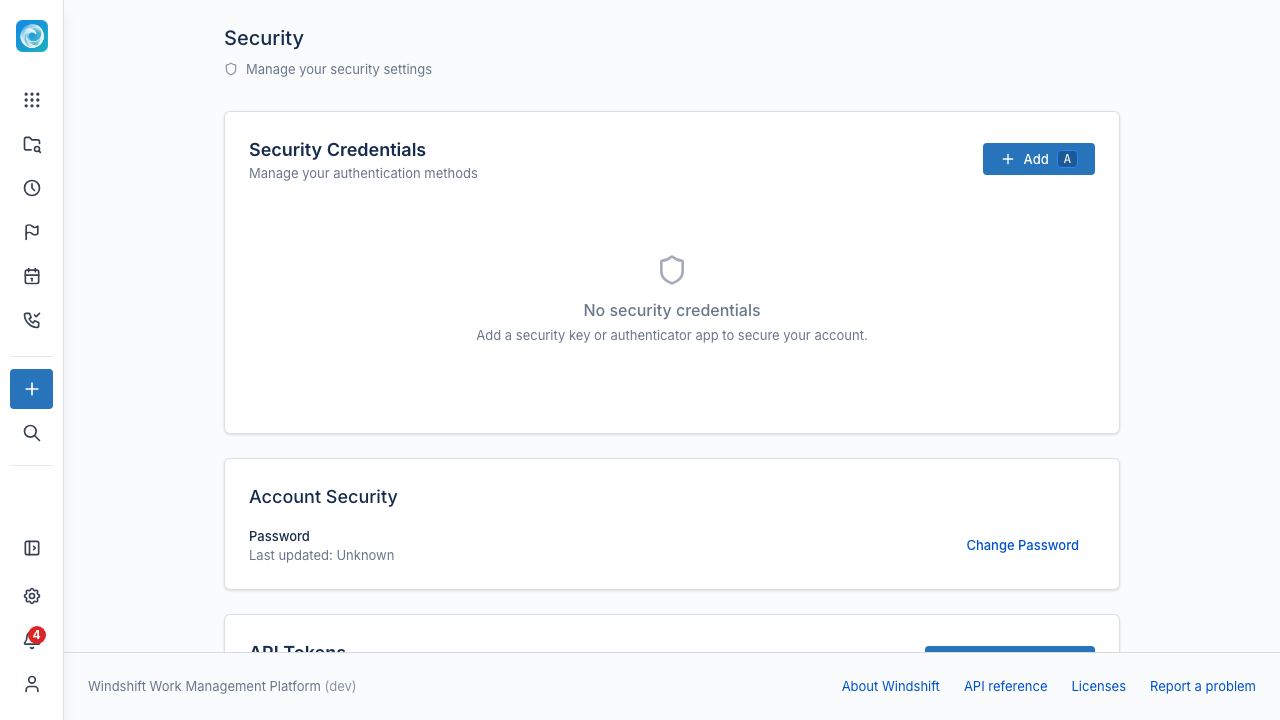
Security credentials
Add one or more credentials:
- Security key (FIDO2). Use a hardware key or a built-in authenticator such as Touch ID or Windows Hello.
- Authenticator app (TOTP).
- SSH key.
Each credential shows its type and the date you added it. Remove a credential you no longer use. Your administrator can require a passkey as a second factor or as the only sign-in method. See Security.
Password
Select Change Password to set a new password. Enter your current password, then the new password.
API tokens
Create an API token to access the API as yourself:
- Select Create Token.
- Enter a token name.
- Select the scopes the token can use.
- Set an optional expiry date.
- Select Create Token.
Windshift shows the token once. Copy it before you close the dialog. Revoke a token to stop it immediately.