Notifications
Windshift notifies you about activity on work you care about. Open the bell in the sidebar to see recent notifications, or open the full notifications page.
The notification tray
The bell shows an unread count. Open it to see recent notifications. Select View all notifications to open the full page.
Opening the tray marks notifications as seen. Seeing a notification does not mark it as read, so email batching can still include it.
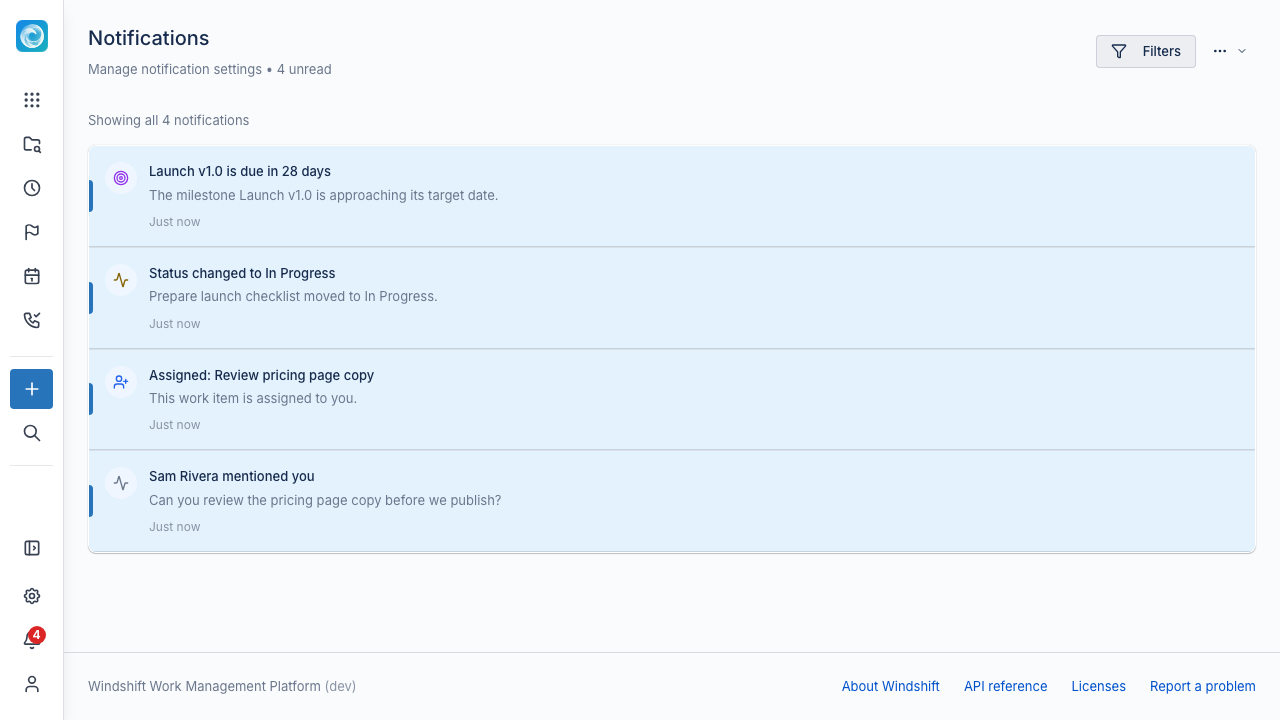
The notifications page
The page lists your notifications. Each notification shows a title, a message, and when it arrived. Select a notification to open the related item or page.
You can filter the list:
- Type: All Types, Assignments, Comments, Status Changes, Reminders, or Milestones.
- Status: All, Unread Only, or Read Only.
You can also search by title and message.
Notification types
| Type | Example |
|---|---|
| Assignment | Windshift assigns a work item to you. |
| Comment | Someone adds a comment to an item you follow. |
| Mention | Someone @mentions you. |
| Status change | An item you follow changes status. |
| Reminder | A due date or other reminder. |
| Milestone | Milestone activity. |
Manage notifications
- Mark as Read marks one notification.
- Mark All as Read marks every notification.
- Dismiss removes one notification.
- Clear All removes every notification.
Who receives notifications
Which events create notifications and who receives them is a notification setting. A configuration set assigns a notification setting to a workspace. Your administrator controls the rules.
Mobile push notifications are separate. See Mobile App.