Forms
A form collects information and creates a work item in a target workspace. Share it as a hosted page or embed an anonymous form in another website.
Forms are separate from customer portals. Use a portal when customers need to follow and discuss their requests. Use a form when the primary task is collecting a submission.
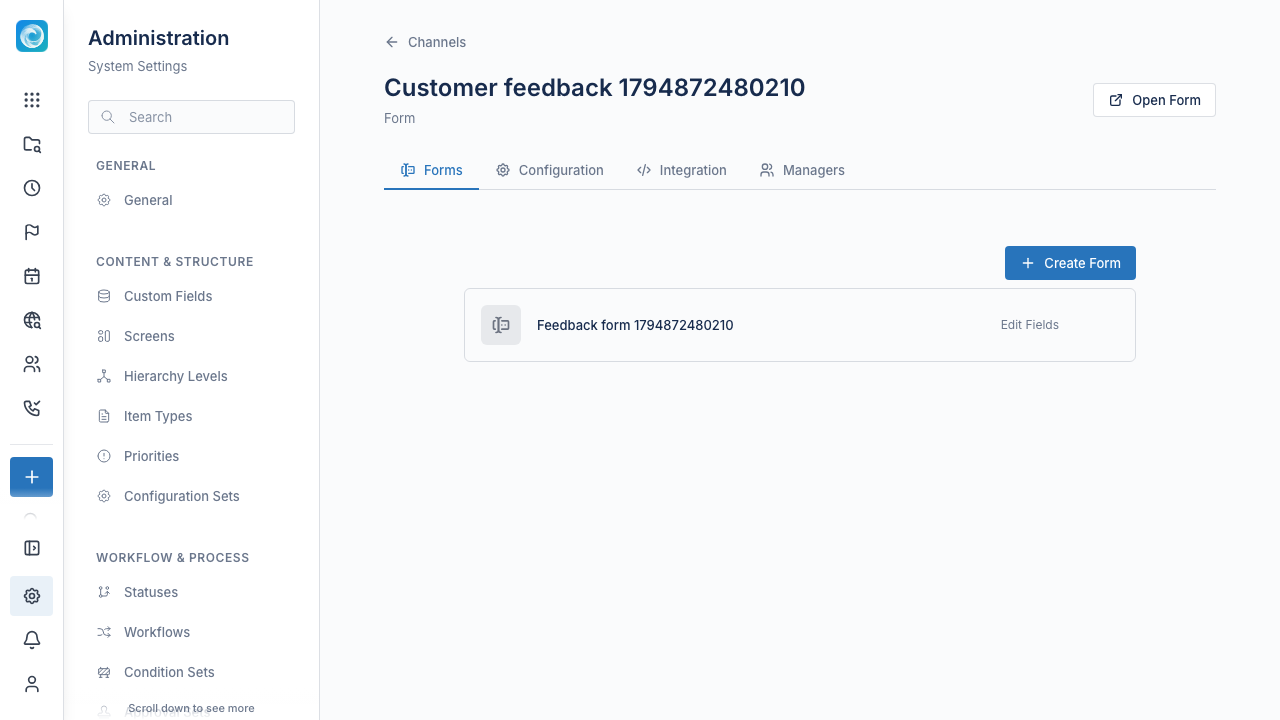
Create a form channel
Creating a channel requires a system administrator. Assigned channel managers can maintain it afterward.
- Open Admin, then Channels.
- Select the Form channel type.
- Create a channel with a name and public slug.
- Select Create Form.
- Enter the form name.
- Select the target workspace.
- Select an item type from that workspace's configuration.
- Create the form.
The creation flow prepares the channel for the selected workspace. A newly created form does not need a separate activation procedure. Its workspace and item type are fixed after creation. Recreate the form if its routing must change.
Build the form
Open the form in the builder. Add and reorder fields from the available-field palette. Configure labels, required values, and steps.
- Default fields supply values such as the item title and description.
- Custom fields collect structured values supported by the target configuration.
- Virtual fields add questions without creating a global custom-field definition.
Preview the form before sharing it. Preview does not submit a work item. Test the published form with representative values and confirm the resulting item in its target workspace.
Form and channel settings
Each form controls sign-in requirements, attachment uploads, submit-button text, and success behavior. A sign-in-required form uses an internal Windshift user account, not a portal customer account.
Channel settings supply the shared slug, theme, brand color, logo, and default success message or redirect. Review the target URL before enabling a redirect.
Share or embed
The hosted channel URL is /forms/<slug>. A channel with several forms offers a choice. Link directly to one form at /forms/<slug>/<form-id>.
After creating a form, open Integration to copy its hosted link, iframe snippet, or JavaScript widget snippet. The widget loads from your Windshift instance, not a third-party form service.
If any form in the channel requires sign-in, the integration panel offers only the hosted share link. Embedded forms cannot pass along a Windshift sign-in. Do not disable authentication merely to make embedding available.
Drafts and retries
Hosted forms can restore entered values and the current step. Anonymous drafts stay in the current tab's session storage. Signed-in drafts use browser local storage scoped to the user. They do not synchronize across devices.
Use Start fresh to discard a restored draft. After a failed submission, review the visible error before retrying. A draft or attachment selection is not proof that a work item was created.