Custom Fields
Custom fields store extra data on work items. You define a field once for the whole instance. Then add it to a screen so it appears on item forms.
Only system administrators can create, edit, and delete custom fields.
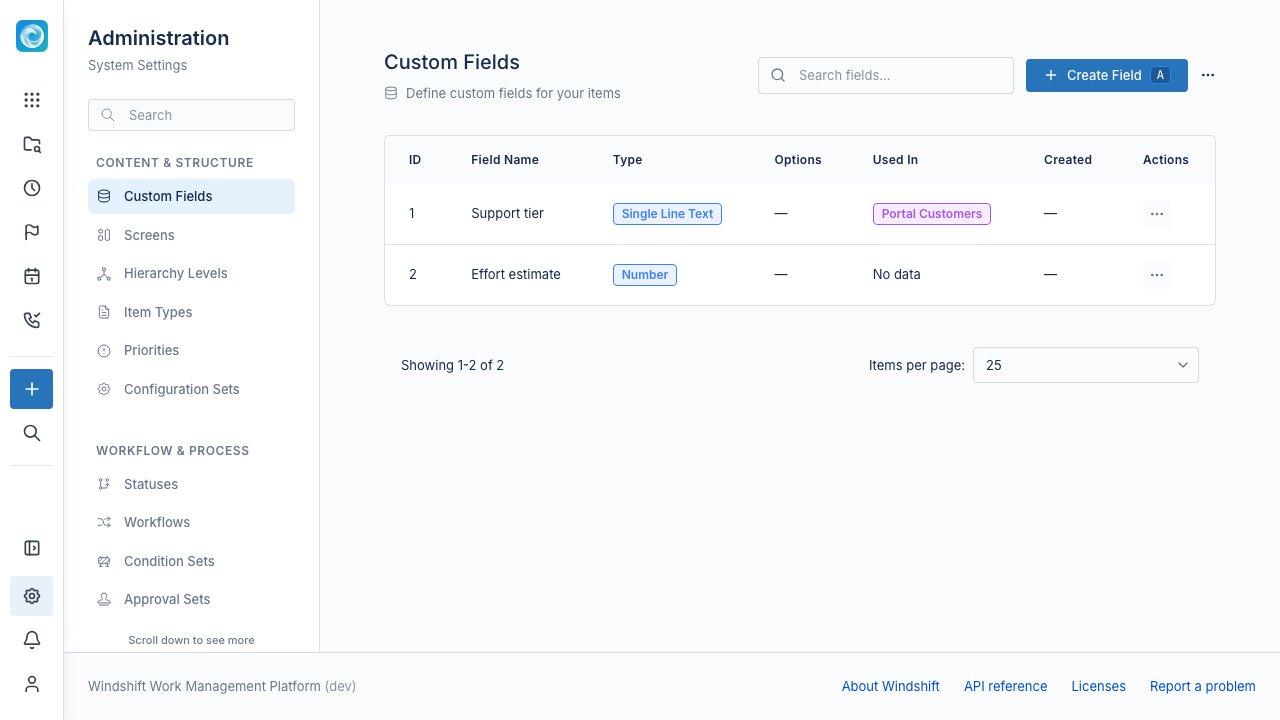
Field types
| Type | Use |
|---|---|
| Single line text | Short free text, such as a URL or an identifier. |
| Multi line text | Longer free text. |
| Single select | One value from a fixed option list. |
| Multi select | Several values from a fixed option list. |
| Number | Numeric value. |
| Date | Calendar date. |
| User | One user. |
| Multi user | Several users. |
| Iteration | One iteration. |
| Milestone | One milestone. |
| Asset | One asset from an asset set. |
| Portal customer | One portal customer. |
| Customer organisation | One customer organisation. |
| Checkbox | True or false. |
| Linking | A typed link to another work item. |
Single select and multi select fields need at least one option. Linking fields use a link type and can mirror the link on the target item.
Field settings
- Name and description set the label shown on the item form.
- Required fields must have a value before you can save the item.
- Options list the values for single select and multi select fields.
- Maximum length limits the text length for text fields.
- Indexing lets you use text, number, and date fields in filters and collection queries.
Portal and customer fields
The Portal customer and Customer organisation types apply to portal customer records and customer organisations. They do not appear on work items.
Show a field on a work item
A custom field does not appear on a work item until a screen includes it. See Screens.
Default fields
Windshift ships with default custom fields. You cannot delete a default field. You can edit its options and description.
Manage custom fields
- Open Admin, then Content & Structure, then Custom Fields.
- Select Create field.
- Select a field type.
- Enter the name, description, and options.
- Save the field.
- Add the field to a screen.