Screens
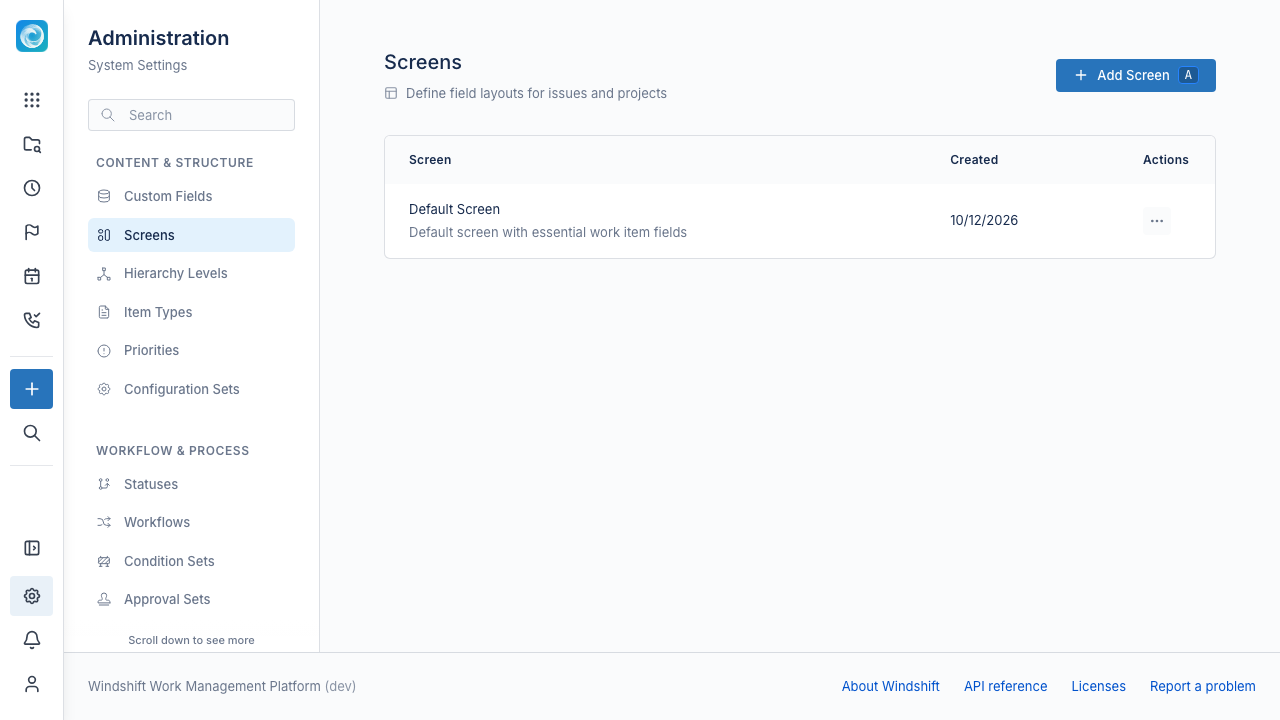
A screen is a field layout. Screens control which fields appear when a person creates, edits, or views a work item, and in which order.
A screen contains two kinds of fields:
- System fields that Windshift manages, such as Title, Status, Priority, Assignee, Milestone, and Iteration.
- Custom fields that you define in Custom Fields.
Only system administrators can manage screens.
Field layout
Each field on a screen has a display order, a width, and a required flag.
| Width | Effect |
|---|---|
| Full | The field spans the full form width. |
| Half | The field spans half the form width. |
| Third | The field spans one third of the form width. |
| Quarter | The field spans one quarter of the form width. |
Drag a field from the available list into the layout. Drag fields in the layout to reorder them. You can also remove a field and mark it as required.
Title, Description, and Status stay visible in fixed positions. You cannot remove them from a screen.
Screen contexts
Windshift uses a separate screen for each context:
- Create controls the new item form.
- Edit controls the item edit form.
- View controls the read-only item view.
A configuration set assigns a screen to each context. An item type can override the screens for its own items.
Manage screens
- Open Admin, then Content & Structure, then Screens.
- Select Add screen, then enter a name and description.
- Save the screen.
- Open the screen menu and select Fields.
- Add, remove, and reorder fields.
- Select Save fields.
You cannot remove the default screen. You can rename every screen and translate its name and description.