Approval Sets
An approval set adds a decision step to a status. When an item enters a status with an approval set, Windshift opens an approval request. The item cannot leave that status until the approval completes.
Only system administrators can manage approval sets.
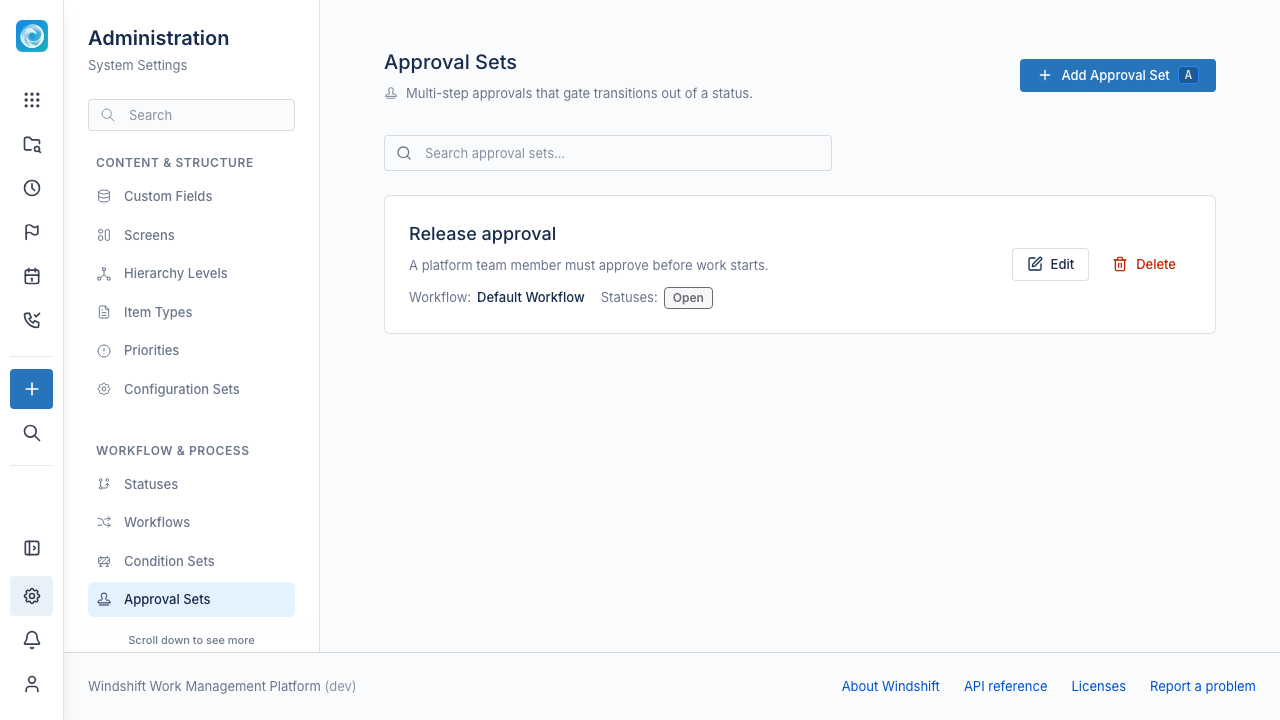
Why use approval sets
Approval sets add sign-off to the workflow. Use approval sets to:
- Require a review before work starts or ships.
- Add a multi-step chain, such as a security review and then a release manager approval.
- Require agreement from several people with parallel steps and a quorum.
- Route the decision to the right people with a role, a group, a user field, or a custom field.
- Cover absence and delay with substitutes and escalation.
How an approval set works
An approval set belongs to one workflow. A configuration set assigns it to the workspace or item type that uses the workflow.
You bind the approval set to one or more statuses. For each status, you choose:
- The approve transition that runs when the approval succeeds.
- The deny transition that runs when the approval fails.
Both transitions must start from the bound status. While an approval is open, users cannot run the approve or deny transition directly. Only the approval engine runs them.
Steps and quorum
An approval set has one or more steps. Each step has a quorum:
| Quorum | Effect |
|---|---|
| Any | One approver is enough. |
| All | Every approver must approve. |
| Count | Exactly N approvers must approve. |
| Percent | A percentage of the pool must approve, rounded up. |
Each step also has a rejection policy. Either any rejection fails the step, or the rejections must meet the quorum to fail it.
Steps run in one of two modes:
- Sequential: Steps run one after another. Each step opens only after the previous step approves.
- Parallel: All steps open at once. The request approves only when every step approves, and rejects on the first reject.
Approvers
Each step resolves its approver pool at request time. Choose one source:
- The item creator, the current assignee, or the user who triggered the approval.
- A specific user.
- A regular field, such as
assignee_id,creator_id, orreporter_id. - A user-typed custom field.
- A workspace role.
- A group.
A step can allow self-approval. Leave it off when the person who moves the item must not approve it.
On leave and escalation
Two rules form a fallback chain.
- On approver leave: use the substitute from the leave record, skip the approver, or keep the approver.
- When no decision arrives in time: do nothing, reassign to another target, skip the step, or auto-reject the request.
If the leave rule empties the pool, escalation fires immediately instead of waiting for the timer. A reassign escalation re-arms after each timeout, up to a maximum count.
Decisions and the approval inbox
Approvers see pending requests in the approvals inbox. Each request shows the item, the step, and the other approvers. An approver can approve, reject, comment, or delegate. Windshift records every decision.
Conditions and approvals together
Conditions on a transition that an approval drives do not run when the engine fires the transition. The conditions still run for direct user attempts, which the approval blocks anyway. To avoid surprise, put time-of-entry rules on the transition that leads into the approval status.
Create an approval set
- Open Admin, then Workflow & Process, then Approval Sets.
- Select Add Approval Set.
- Select the workflow. You cannot change the workflow later.
- Add an approval status and select the approve and deny transitions.
- Add steps and set the quorum and approvers.
- Save the approval set, then assign it to the workflow through a configuration set.