Condition Sets
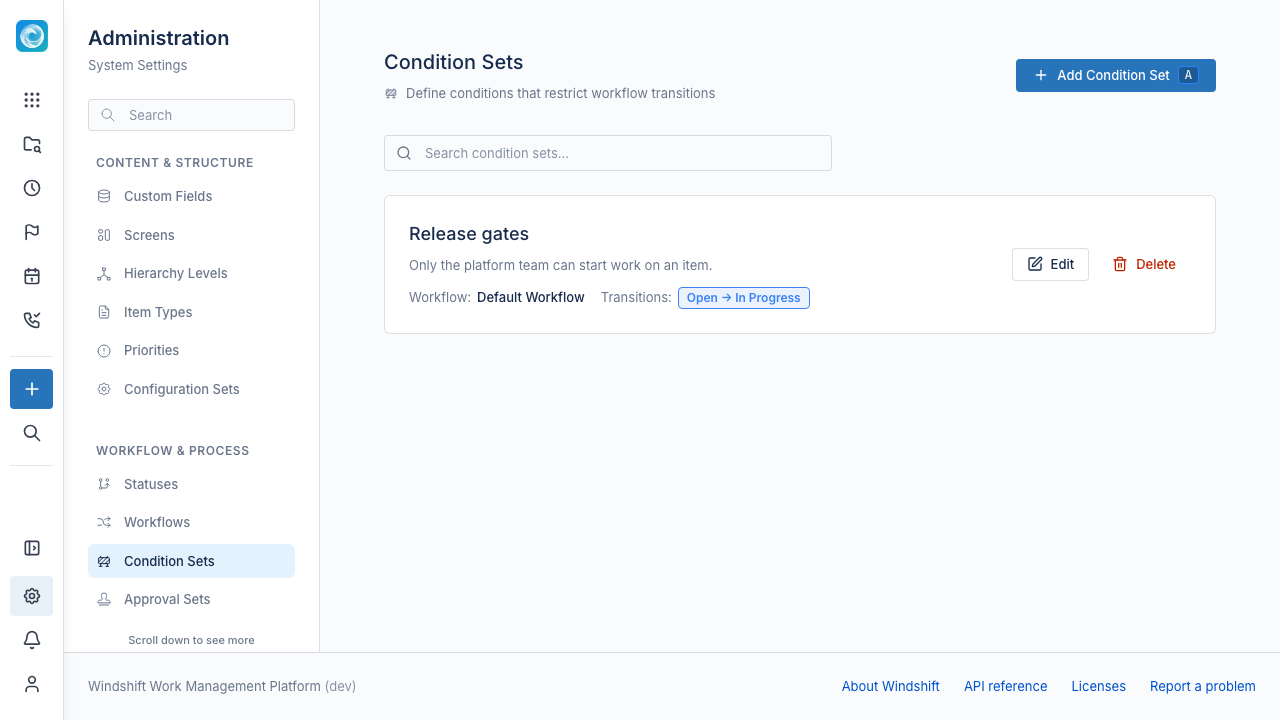
A condition set adds rules to the transitions of one workflow. The rules decide who can use each transition and under what conditions. Use condition sets to control how work flows, not only where it can go.
Only system administrators can manage condition sets.
Why use condition sets
A workflow defines which transitions exist. A condition set defines when to allow each transition. Use condition sets to:
- Restrict a transition to a specific group or role.
- Enforce a quality gate before a status change.
- Apply custom policy with a script.
- Explain a blocked transition with a validator message.
How a condition set works
A condition set belongs to one workflow. A configuration set assigns the condition set to the workspace or item type that uses the workflow. An item type can override the condition set.
Inside the condition set, you attach rules to specific transitions. Each rule has a mode:
- Condition: Windshift hides the transition when the rule fails. The user does not see the option.
- Validator: Windshift shows the transition and blocks it with an error message when the rule fails. Use a validator to explain the rule.
Validators are hard gates. Every validator must pass. Conditions combine with the logic mode of their transition:
- And: every condition must pass.
- Or: at least one condition must pass.
Condition types
| Type | Checks |
|---|---|
| User in role | A chosen user holds a workspace role. |
| User in group | A chosen user is a member of a group. |
| Field value | A regular or custom field matches a regular expression. |
| Script | A JavaScript expression returns true. |
For the user checks, choose a user to evaluate. You can evaluate the current user, the item creator, or the item assignee. You can also evaluate a regular user field or a user-typed custom field.
For example, check that the assignee holds the Tester role. You can also check that a "Reviewer" custom field holds a member of the QA group.
Field value rules match a regular expression against a regular field or a custom field. For example, match a pull request field against ^https://github\.com/.
Script rules run JavaScript with two variables: item and user_id. The script must return a boolean. Use a script for policy that the built-in types cannot express.
Examples
- Restrict a transition to a group: add a condition on the transition to QA. Set the type to User in group, the user to Current user, and the group to QA. Set the mode to Condition.
- Require a field before Done: add a validator on the transition to Done. Select the pull request field, set the pattern to
^https://, and add an error message. - Release on a date: add a script condition that returns true when the item target date is in the past.
Create a condition set
- Open Admin, then Workflow & Process, then Condition Sets.
- Select Add Condition Set.
- Select the workflow. You cannot change the workflow later.
- Add a transition condition, select the transition, and set the logic mode and conditions.
- Save the condition set.
- Open the configuration set that uses the workflow and assign the condition set.
Compare with approval sets
A condition set decides whether to allow a transition right away. An approval set pauses the item in a status until people approve it. Use a condition set for a rule and an approval set for a decision.